Student reviewing an essay
Listen to one paragraph while following its sentences on screen, then mark wording that sounds repetitive.
Revise the draft in Docs and replay the changed paragraph instead of relying on a stale copied version.
Document reading
If you want to learn how to use text to speech on google docs, first decide whether you need to hear the document while editing it or turn a passage into spoken audio. Those jobs use different tools, and Google Docs voice typing does the reverse: it puts your speech into the document.

Start with the result you need: spoken feedback during editing or a separate reading of selected text.
Open your document and identify a paragraph worth checking. A short passage makes it easier to catch a skipped word, awkward pause, or mistaken pronunciation before you listen to a longer section.
For reading within Docs, use a screen reader or a reading feature available through your browser or device. For a separate voice preview, copy the passage into Text To Speech. Check what an extension can access before allowing it to read a document.
Follow the words as they are spoken. Fix unclear sentences in the original document, then listen again. If you copied text out of Docs, repeat the copy after each revision so the spoken version matches the latest draft.
Pick the reading workflow that matches your task rather than assuming every voice feature in a document editor does the same thing.
These checks help you choose a route without confusing dictation, on-screen reading, and a separate voice preview.
| Read within Docs | Read copied text | |
|---|---|---|
| Best fit | Follow a document while reviewing or editing. | Hear a selected passage outside the editor. |
| Starting point | Open the document and use your device's screen reader or a compatible reading feature. | Select current text, copy it, and paste it into a speech tool. |
| Voice typing | Not a read-aloud method; it enters words you speak. | Not needed when converting written words to speech. |
| Latest edits | The reader can follow the document you have open. | Copy the passage again after changing it in Docs. |
| Formatting | Navigation and reading behavior depend on the reader and device. | Headings, tables, and comments may need cleanup after copying. |
| Privacy check | Review permissions before enabling a browser extension. | Paste only material you are comfortable sending to another tool. |
| Success test | You can locate and follow the intended passage as it is read. | The voice reads the intended words with useful pauses. |
A useful voice check often reveals a writing problem rather than a problem with the reader.
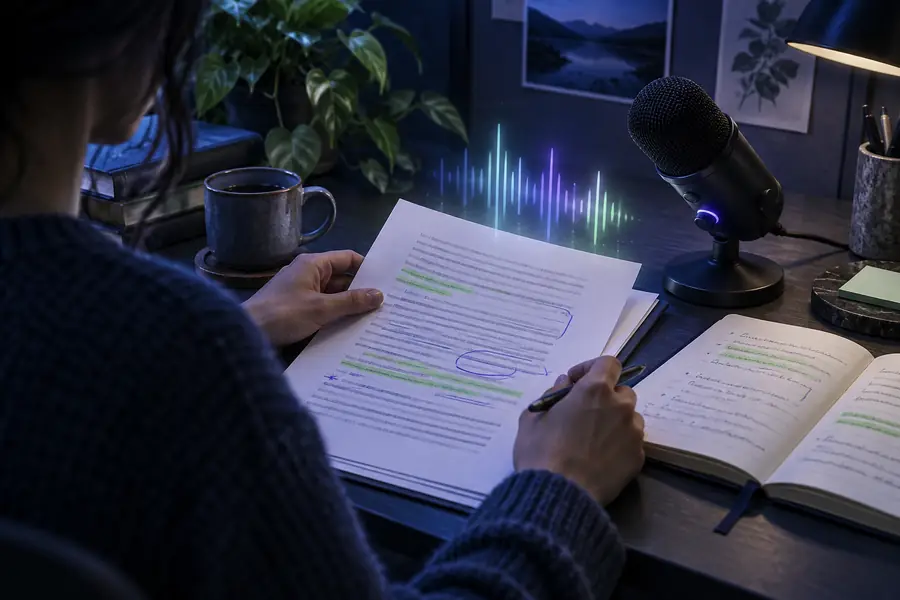
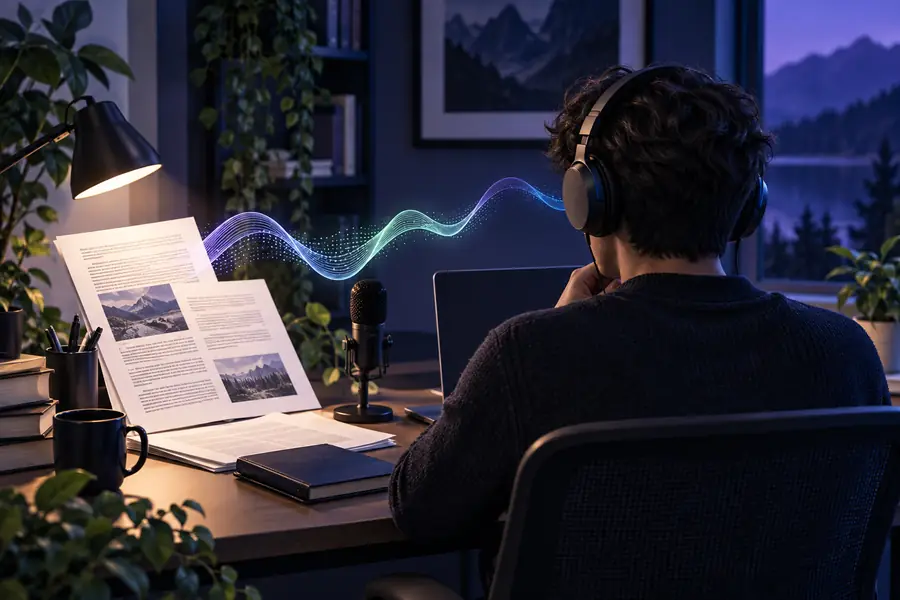
If a sentence sounds rushed, try splitting it or adjusting punctuation in Docs before listening again. Check names and abbreviations in a short sample; a different voice may pronounce them differently. These images illustrate the workflow, not a Google Docs control.
First listenRevised passageThe same document can call for different listening habits. Use a small, relevant passage before committing to a full read-through.
Listen to one paragraph while following its sentences on screen, then mark wording that sounds repetitive.
Revise the draft in Docs and replay the changed paragraph instead of relying on a stale copied version.
Read a short section aloud to catch missing words that silent proofreading can overlook.
Correct the source document first, then check the revised rhythm with another listen.
Copy a selected script passage for a separate preview without changing the shared document.
Spot long sentences and add natural pauses before rehearsing the final wording.
Check whether an extension needs document access before using it on material from collaborators.
Use only an approved reading method, or test with a nonsensitive excerpt.
Copy a current paragraph from your document, listen for unclear phrasing, and make any edits back in Docs. Text To Speech is a separate place to preview pasted writing; it does not turn on a read-aloud control inside Google Docs.
Do not confuse Docs voice typing with read-aloud: voice typing writes down what you say. To hear a document, use an available screen reader or device reading feature, a suitable browser tool, or copy text into a separate speech tool. The controls you see depend on your device and setup.
Yes, if your device's screen reader or a compatible reading feature can read the document in place. Try a short paragraph first and confirm that navigation follows the text you intend to hear. Review any extension's permissions before giving it access to a shared file.
A speech tool outside Docs reads the text you last pasted, not later edits to the document. Copy the revised passage again and replace the old text before replaying it. Reading directly from the open document avoids that particular mismatch.
Results vary by reader, device, and whether you listen in Docs or paste text elsewhere. Test a small sample containing the kind of formatting you need. If you copy a table or comment, check the pasted order before trusting the spoken version.
No. Voice typing converts your spoken words into written text, while text to speech reads written words aloud. If your aim is proofreading by ear, choose a reading method and listen to a short section of the document.